Gallery
- 4.3
- Rating
- 1.00M
- Installs
- Free
- Price

 Analysis by App-foxy
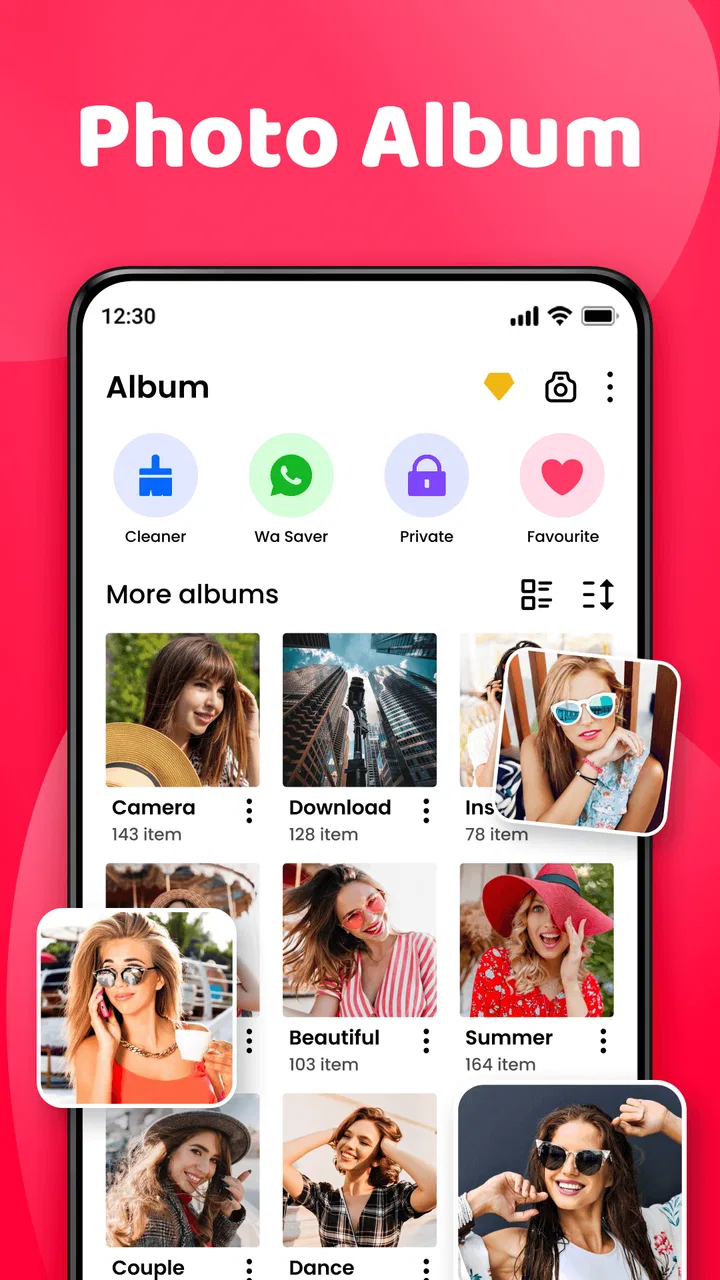
I tend to notice the small frustrations in a photo app first: an image that refuses to appear, a video hidden among thousands of files, or a private folder that feels harder to reach than expected. Gallery, from Gallery Pro - Photo Album Manager, is aimed at making those everyday problems easier to manage on Android. It is a free photography app with a clean purpose: help you browse images and videos, organize them, and add a private layer through its photo vault and gallery lock tools.
After spending time with it, my impression is that Gallery works best as a practical replacement for a basic phone gallery when you want more control over browsing and privacy. It is not the kind of app I would recommend simply because it has a long list of decorative effects. Its value is in the way it brings ordinary media management and private storage into the same place. That combination is useful, although it also means setup deserves a little patience.
Where users usually get stuck
The first hurdle is understanding what the app can actually see. A gallery manager does not magically repair missing files or make every image on a phone appear immediately. If a picture is stored in a location the app cannot access, if the file is damaged, or if the phone has not finished indexing new media, the problem may look like a Gallery failure when it is really a storage or system issue.
You May Also Like

 Blood Strike: 2.5 Anniversary
Blood Strike’s Loadouts Turn Every Drop Into a Tactical Gamble
A close look at Blood Strike’s custom loadouts: how fast access to signature weapons reshapes its battle royale rhythm, rewards preparation, and narrows the gap between fights.

 Pandora - Music & Podcasts
Pandora’s Music Is Easy to Start, but Harder to Recover
Pandora’s strength is its low-effort path from a seed to a station. Its weak spot is how much confidence it asks you to place in connection, setup, and quiet recovery.

 8 Ball Pool
 Is Built on Rivalries, Rematches, and Routine
A close look at the rivalries, rematches, shared routines, and unanswered safety questions that turn a quick pool match into a persistent mobile community.

 Samsung Music
’s Quiet Strength Is Playing What You Already Own
Its reach comes less from spectacle than from dependable access to a personal library. That simplicity is both the app’s strongest retention engine and its ceiling.

 AccuWeather: Weather Radar
AccuWeather Review: A Quick, Clear Forecast for Everyday Decisions
For everyday plans, the best forecast is the one you can understand quickly. AccuWeather makes rain timing, radar, and local conditions easy to act on, with a few trade-offs.

 Hill Climb Racing
Why Hill Climb Racing Still Turns Crashes Into One More Run
A tiny car, a bumpy hill and one more upgrade: Hill Climb Racing keeps resurfacing because its simple chaos makes every near-miss feel personal.
More From Our News Desk
View All News


I recommend opening the app after taking a moment to check where your photos are saved. Images captured with the camera, downloads, screenshots, messaging attachments, and files transferred from a computer may not all follow the same folder structure. A useful first test is to create or download one ordinary image, then check whether it appears. If that new file shows up while an older group does not, the issue is probably related to the original folder or file rather than the gallery interface.
Another common point of confusion is the difference between hiding a picture from the normal gallery and moving it into a protected area. Those actions are not interchangeable. If you only want to reduce clutter, a regular album or folder workflow makes more sense. If the goal is privacy, use the vault or lock function deliberately and remember where the protected content is meant to be accessed. Privacy tools are useful only when their workflow is clear to you before you move important files.
Videos can also make browsing feel less predictable than photos. Large clips may take longer to load, and a video that was interrupted during transfer may remain visible but fail to play. I would not immediately uninstall the app in that situation. Try the same file in the phone’s original media app or another player. If it fails everywhere, Gallery is only displaying a problem that already exists in the file.
What I would check before blaming the app
When a folder looks empty, I work through a short sequence instead of repeatedly refreshing. I confirm that the file is still present in the phone’s storage, check whether it opens elsewhere, and look for a duplicate in another folder. I also check whether the image was moved into a private area by mistake. This approach matters because a gallery app is an index and viewing layer; it is not always the place where the original storage problem began.
Gallery is available at no upfront cost, and its content rating is Everyone, which makes it approachable for a broad range of users. The developer is listed as Gallery Pro - Photo Album Manager. The app has reached over a million installs and holds a 4.3 average from around twenty-five thousand ratings, so it is clearly being used as a general-purpose gallery rather than a niche professional photography tool.
Setup checks that prevent avoidable trouble
On first use, I would avoid rushing through the initial screens. Give the app a chance to display its media and pay attention to how albums are presented before changing anything. If the phone asks you to allow access to photos or videos, that permission is central to the app’s purpose. Refusing access and then judging the empty result is not a fair test, but granting access without thinking about which media you want managed is not ideal either.
A sensible setup is to begin with ordinary, non-sensitive images. Confirm that the camera folder, screenshots, and downloads are visible. Then try opening one photo and one video. This gives you a baseline for browsing, thumbnails, and playback before you introduce the vault or gallery lock. If something goes wrong later, you will know whether the problem started with media access or with the privacy workflow.
I also suggest keeping the first private-folder test small. Move a copy of an unimportant image rather than the only copy of a family photo or document. Then close and reopen the relevant area to make sure you understand how the item is retrieved. This is one of the less obvious but more important habits with any vault-style feature: test the return path before trusting it with irreplaceable media.
The current version is 8.0, and it supports Android 8.0 and later. That makes it suitable for many older phones as well as newer devices, but compatibility with the operating system does not guarantee identical behavior on every manufacturer’s interface. Android phones can handle storage, background activity, and media scanning differently. If Gallery behaves differently after a system update, check the phone’s own battery, storage, and media-access settings before assuming the app itself changed.
Organizing a crowded camera roll
For a large library, I would not attempt a complete cleanup in one sitting. Start with a narrow task: separate screenshots, review recent downloads, or create a small album for an upcoming trip. Gallery becomes more useful when you treat it as a working organizer rather than a one-time filing project.
A practical routine is to review new images at the end of the day, remove obvious duplicates, and place important pictures into a meaningful album while you still remember the context. This is more effective than waiting until the phone contains years of mixed screenshots and forwarded images. The app can provide the viewing and organizing space, but the quality of the result still depends on the habits you bring to it.
I would also avoid moving files around while another app is actively editing or uploading them. A photo being processed by a backup service, messaging app, or editor may not behave like a finished local file. If an image disappears after an edit, check the original and edited locations before repeating the operation. Repeated moves can create confusion, especially when several copies have similar names.
Recovering a workflow when something goes wrong
When media stops appearing, I use a recovery process that protects the original files. First, I stop making more changes. I do not immediately delete, rename, or move a whole folder. Next, I open a known image outside Gallery. If it works, I return to Gallery and check whether the issue affects one folder or the entire library. A single missing album suggests a location or indexing problem; a completely empty view points more toward access or system settings.
If a private item seems missing, I would look for it through the app’s own protected area before searching the general gallery. Moving it repeatedly between normal and private locations can make it harder to remember where the current copy resides. I would also avoid clearing app data as a first response, because that can remove local app settings and make a recovery process more confusing. Basic checks are safer: reopen the app, confirm access, and test with a disposable file.
For a video that will not play, compare its behavior in another player. For a photo that shows a blank thumbnail, try opening the file directly from a file browser or the phone’s original gallery. These comparisons tell you whether the issue is presentation or storage. Gallery can be a convenient front end, but it cannot turn a partially copied video into a complete one or reconstruct a damaged image.
There is another useful distinction between a missing file and a hidden file. A file may be present but excluded from the ordinary view because it is in a private area, stored in an unusual folder, or affected by a system-level media rule. Before restoring from a backup or downloading the same image again, check those possibilities. This simple pause can prevent duplicate files and unnecessary storage use.
Using the privacy features without creating new confusion
The vault and gallery lock are the features that separate this app from a very basic photo viewer. I see them as helpful for situations such as keeping personal documents away from casual browsing, separating surprise gifts from the main camera roll, or storing images that should not appear when someone is looking through vacation photos. They are especially convenient when you want browsing and privacy management in one app instead of switching between unrelated tools.
At the same time, I would not treat the lock as a complete substitute for a backup plan. Before placing valuable media into a protected area, keep a secure copy somewhere you trust. A privacy feature can reduce accidental exposure, but it does not remove the need to protect against a lost, damaged, or reset phone. This is a general safety practice, not a criticism of Gallery specifically.
Be methodical when moving items into the vault. Start with one file, verify that it is accessible through the protected workflow, and only then move a larger group. If you share the phone with family members, make sure they understand that a picture may no longer appear in the ordinary gallery after you protect it. Many “missing photo” moments are really misunderstandings about which view is currently being used.
When Gallery is not the cause
Some problems belong to the phone rather than the app. A nearly full storage drive can interfere with new photos, thumbnails, edits, and video transfers. A failing memory card can produce files that appear briefly and then become unreadable. A system battery restriction can also interrupt background media scanning. If several apps show the same symptoms, changing gallery apps is unlikely to solve the underlying issue.
Cloud synchronization creates another layer of confusion. A cloud service may show a preview even when the full file is not stored locally, while a gallery manager may be working with the device copy. If an image is available online but not offline, check the sync app that owns it. Gallery is better suited to managing media that the phone can actually access than to replacing a dedicated cloud library.
This distinction helps explain when I would choose a different option. If your priority is automatic online backup, shared albums, or searching a very large cloud collection, a cloud-focused photo service may suit you better. If you want advanced manual editing, a dedicated editor will offer deeper controls. If you only need a simple viewer and never use albums or privacy tools, the phone’s built-in gallery may be faster because it is already integrated with the device.
Gallery makes the most sense for someone who wants a middle ground: more organization than the default viewer, plus a private space, without installing a separate tool for every small task. It is less compelling for photographers who need professional color management, detailed metadata workflows, or extensive editing. I would also skip it if you dislike managing a second gallery interface or if your media already lives almost entirely inside a cloud ecosystem.
Costs, compatibility, and everyday expectations
The app is free to install, with optional in-app purchases ranging from ninety-nine cents to thirty-nine dollars and ninety-nine cents per item. That pricing range means I would inspect any upgrade screen carefully and decide whether the extra functions match your actual routine. The free starting point is useful for testing the basic browsing and organizing experience before spending anything.
Because the app is rated for Everyone, it is easy to consider for a family phone, but the privacy features still deserve adult supervision when sensitive files are involved. The age label describes suitability; it does not replace good decisions about backups, shared devices, or who can unlock the phone.
In a normal day, I can imagine using Gallery after a school event or family gathering. I would open the recent media, separate screenshots and downloaded images from the camera shots, create an album for the event, and put a few personal documents into the protected area. Later, if one picture failed to appear, I would check its original folder and open it elsewhere before assuming the app had lost it. That workflow is simple, but it shows where the app earns its place: reducing small amounts of daily media friction.
My practical verdict after using it
Gallery is a sensible choice if you want a dedicated Android photo manager that combines ordinary browsing with albums, video handling, a vault, and a gallery lock. I like that its purpose is easy to understand and that it can serve both casual organization and modest privacy needs. The strongest benefit is not a flashy feature; it is having these tasks close together instead of scattered across several apps.
My main caution is to approach the setup deliberately. Confirm media access, test a harmless file before using the vault, and separate app problems from damaged files, storage trouble, or cloud-sync confusion. Those checks take only a little time and make the experience much less stressful. If something is missing, stop moving files and identify whether the issue affects one folder, one file, or the whole phone.
Gallery is best for practical control, not professional photography. I would recommend it to someone frustrated by a cluttered default gallery or looking for a straightforward private area. I would point a cloud-first user toward a cloud photo service, and a serious editor toward a dedicated photography tool. For everyone in between, the free version is a reasonable way to test whether its organization and privacy workflow fit the way you actually store pictures and videos.
Overall, I see Gallery as a useful, approachable utility rather than an essential replacement for every photo service. Its 4.3 average and broad adoption suggest that the basic idea works for many people, while the real decision comes down to your habits. If you are willing to learn where protected files go and perform a few sensible storage checks, it can make a busy camera roll easier to live with.
FAQs for Gallery
01What features does the Gallery app offer?
The Gallery app provides a comprehensive set of features for managing your photos and videos. It includes automatic organization, advanced search capabilities, editing tools, and cloud backup options. Users can also create albums, share media with ease, and enjoy a secure, password-protected space for private files.
02How does the Gallery app handle photo and video organization?
The Gallery app employs intelligent algorithms to automatically sort your photos and videos by date, location, and even by people or objects in the images. This makes it easy to find specific media without manually organizing them, enhancing the user experience and saving time.
03Is the Gallery app compatible with both Android and iOS devices?
Yes, the Gallery app is designed to work seamlessly on both Android and iOS devices. It ensures a consistent user experience across different platforms, allowing users to sync their media collections effortlessly and access their photos and videos from any device with ease.
04Does the Gallery app offer any security features?
The Gallery app includes several security measures to protect your media. Users can set up password protection for private albums, ensuring that sensitive photos and videos remain secure. Additionally, the app supports biometric authentication for quick and secure access to your gallery.
05Can I edit photos and videos directly within the Gallery app?
Absolutely, the Gallery app offers a range of editing tools for both photos and videos. You can apply filters, adjust brightness, crop, rotate, and make other enhancements directly within the app. This eliminates the need for third-party editing apps, providing a convenient all-in-one solution.
Pros
- Intuitive user interface.
- Fast photo loading speeds.
- Supports multiple file formats.
- Easy photo organization tools.
- Integrated editing features.
Cons
- Limited cloud storage options.
- Ads can be intrusive.
- No advanced editing tools.
- Occasional app crashes.
- Some features require payment.

Gallery
Gallery